Total Pageviews

Thursday, 22 December 2016

Kernel-based Virtual Machine (KVM) creation !!!

On top of a physical machine, once we installed set of packages and enabled the Virtualization,  we can create virtual machines within it. We can create/manage in three ways...

1. Virtualization shell (virsh CLI).
2. Virtual Manager -virt-manager (GUI).
3. Ubuntu-vm-builder (Command Line tool).

At first I am going to show you the steps to create vm using commands. 

Command: virt-install

Options:   --name    --ram    --vcpus   --disk path   ---cdrom     ---boot    --location    --console

USAGE: 
             root@ubuntu-kvm:~# virt-install
                      WARNING  KVM acceleration not available, using 'qemu'
                      ERROR
                      --name is required
                      --memory amount in MiB is required
                      --disk storage must be specified (override with --disk none)
                       An install method must be specified
                       (--location URL, --cdrom CD/ISO, --pxe, --import, --boot hd|cdrom|...)
              root@ubuntu-kvm:~#

After installing libvirt-bin, we can use the virsh commands...

virsh CLI

To install new vm,

root@ubuntu-kvm:/test# virt-install --name VM1 --ram 1024 --vcpus=1 --disk=/var/lib/libvirt/images/VM1.img,size=8 --cdrom /test/ubuntu-16.10-server-amd64.iso
WARNING  KVM acceleration not available, using 'qemu'
WARNING  Graphics requested but DISPLAY is not set. Not running virt-viewer.
                      virt-viewer is not running, I am running these commands from putty.....
WARNING  No console to launch for the guest, defaulting to --wait -1

Starting install...
Allocating 'VM1.img'                                                                               | 8.0 GB  00:00:02
Creating domain...                                                                                 |    0 B  00:00:00
Domain installation still in progress. Waiting for installation to complete.

Use the command virt-viewer to view the installation process,


Click on "connect", then we can view the installation....


From now it is all normal installation process....


Other than above options, we can also give different options like...

  virt-install --connect qemu:///system
-n vm10                     (name)
-r 1024                      (ram)
--vcpus=2                  (virtual cpu)
--disk path=/var/lib/libvirt/images/vm10.img,size=12      (disk and its size)
-c /test/ubuntu.iso             (cdrom)
-x “console=tty”
--os-type linux          (specify OS type)
--graphics                  (nographics)
--accelerate
--network=bridge:br0       (to specify network card)
--virt-type HV_TYPE            (to specify Hypervisor name (kvm, qemu, xen, ...))
--hvm             (to specify guest should be a fully virtualized guest)
--autostart            (to autostart domain on host boot up)

Still many other options, we can check the usage by "virt-install --help".

Installation process is about to complete...


root@ubuntu-kvm:/test# virt-install --name VM1 --ram 1024 --vcpus=1 --disk=/var/lib/libvirt/images/VM1.img,size=8 --cdrom /test/ubuntu-16.10-server-amd64.iso

Starting install...
Allocating 'VM1.img'                                                                               | 8.0 GB  00:00:02
Creating domain...                                                                                 |    0 B  00:00:00
Domain installation still in progress. Waiting for installation to complete.
                                                              Takes bit long time, once installation completed it will be....
Domain has shutdown. Continuing.
Domain creation completed.
Restarting guest.
root@ubuntu-kvm:/test#

 Below is the output of virt-viewer upon reboot of VM....


Once logged in,


We can check the newly created vm by,

root@ubuntu-kvm:~# virsh list
 Id    Name                           State
----------------------------------------------------
 1     VM1                            running

root@ubuntu-kvm:~#

root@ubuntu-kvm:~# virsh -c qemu:///system list
 Id    Name                           State
----------------------------------------------------
 1     VM1                            running

root@ubuntu-kvm:~#

We can also enter the commands from virsh terminal....

root@ubuntu-kvm:~# virsh
Welcome to virsh, the virtualization interactive terminal.

Type:  'help' for help with commands
       'quit' to quit

virsh #
virsh # list
 Id    Name                           State
----------------------------------------------------
 1     VM1                            running

virsh #
virsh # exit

root@ubuntu-kvm:~#

By this we created a vm using CLI of virsh environment. Now let us create another VM using GUI virt-manager....

virt-manager

As soon as we entered the virt-manager command, GUI screen will be popped out...


Click on create a new virtual machine...


We are using local media so click on forward...


Browse the iso image location....


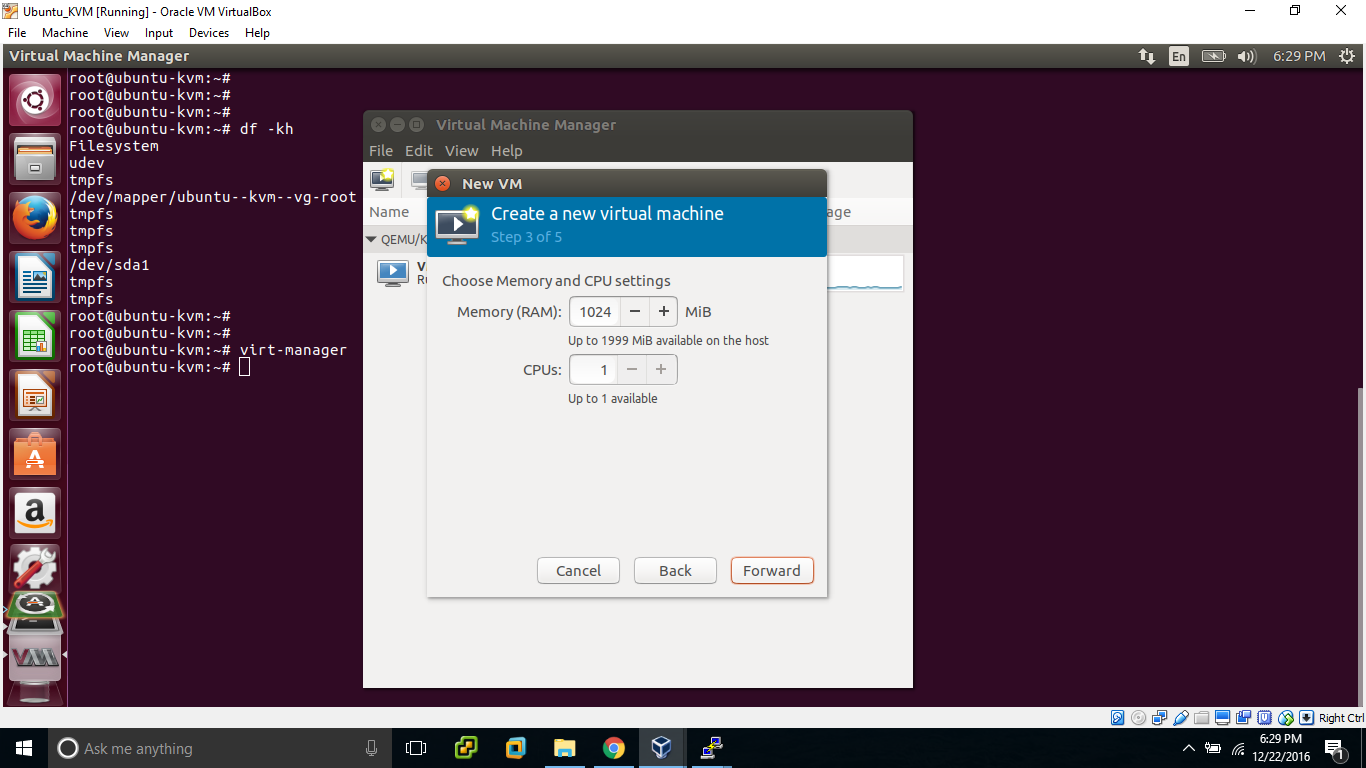
Choose the Memory and vcpus for our domain/vm...


Choose the Storage for our vm...


Check the allocated resources, if we want we can do some network selection like IP assigning, router an netmask....


Initated the domain or vm creation process....


Windows setup is started....


From now, it is general process of Windows OS installation....


Setup copying files is about to complete....


First reboot during the installation process....


By the time of completion, we will be having 2 VMs within our Host Ubuntu machine...


root@ubuntu-kvm:~# virsh list
 Id    Name                           State
----------------------------------------------------
 2     VM1                            running
 5     win2003                        running

root@ubuntu-kvm:~#

Above, if you observe the instance ID is 5, ID will be changed upon every reboot. It means when we created VM1 its ID is 1 and when it is rebooted ID is 2.

Similarly when win2003 is created its ID is 3, during installation process it was rebooted twice and so ID is 5.

Ubuntu-vm-builder

Now let us create another VM using Ubuntu-vm-builder utility....

root@ubuntu-kvm:~# ubuntu-vm-builder
2016-12-22 19:34:13,623 INFO    : logging to file: /tmp/tmpaIORvG
Usage: ubuntu-vm-builder hypervisor suite [options]

ubuntu-vm-builder: error: You need to specify at least the hypervisor type and the series
root@ubuntu-kvm:~#

OR ELSE

root@ubuntu-kvm:~# vmbuilder
2016-12-22 19:46:50,755 INFO    : logging to file: /tmp/tmpGF7Z7n
Usage: vmbuilder hypervisor distro [options]

vmbuilder: error: You need to specify at least the hypervisor type and the distro
root@ubuntu-kvm:~#

Let us create a vm using some basic options....

root@ubuntu-kvm:~# vmbuilder kvm ubuntu --domain VM2 --cpus=1 --mem=1024 --dest /var/lib/libvirt/images/VM2.img  --iso /test/ubuntu-16.10-server-amd64.iso  --libvirt qemu://system 

2016-12-22 19:52:08,987 INFO    : logging to file: /tmp/tmp4xfqeU
2016-12-22 19:52:09,014 INFO    : Calling hook: preflight_check
2016-12-22 19:52:09,018 INFO    : Calling hook: set_defaults
2016-12-22 19:52:09,020 INFO    : Calling hook: bootstrap
2016-12-22 19:52:09,030 INFO    : mount: /dev/loop0 is write-protected, mounting read-only
2016-12-22 19:52:09,161 INFO    : Cleaning up
2016-12-22 19:52:09,192 ERROR   : Process (['/usr/sbin/debootstrap', '--arch=amd64', 'lucid', '/tmp/tmp0RLlyc', 'file:///tmp/tmpNtk6ch']) returned 1. stdout: I: Retrieving InRelease

************** OUTPUT TRUNCATED **************

This is followed by general steps of Ubuntu installation..... Once the installation is done, we have 3 VMs within our host machine.

root@ubuntu-kvm:~# virsh list
 Id    Name                           State
----------------------------------------------------
 2     VM1                            running
 5     win2003                        running
 7     VM2                             running

root@ubuntu-kvm:~#

Different options which we can provide with vmbuilder command during creation of vm...

vmbuilder USAGE:
ubuntu-vm-builder kvm --domain VM2 
                  --arch i386 or amd64   (to specify CPU architecture)
                  --hostname myvm (to specify hostname)
                  --user ubu  (to create a user)
                  --pass ubu  (to assign password to user)
--bridge=br0 (to specify NIC)
                  --ip 10.0.0.222                          (to assign ip)
                  --mask 255.255.255.0 (to assign netmask)
                  --net 10.0.0.0                             (to define network range)
                  --bcast 10.0.0.255      (to assign broadcast)
                  --gw 10.0.0.1                             (to assign gateway)
                  --dns 10.0.0.1                            (to assign DNS)
                  --rootsize=102400 (to allocate root size)
--addpkg openssh-server        (to add additional package)

We created KVMs in all the three different ways. In this post, I concentrated only on the different utilities which we use to create/manage VMs in Linux.

######################################################################################

Wednesday, 21 December 2016

Linux KVM (Kernel-based Virtual Machine) !!!

So far I covered virtualization concepts of VMware (ESXi host and VMs) and Solaris (LDOMS), In this post I am going to discuss about virtualization in Linux which is KVM (Kernel-based Virtual Machine).

Soon after installing Linux OS on top of some high configuration server, we have to install few packages and enable virtualization at kernel level to build and configure VMs (Virtual Machines).

In my Ubuntu machine, I am going to install some packages like kvm, qemu (Quick Emulator) and libvirtd-bin to work with CLI of KVM which is virsh (Virtualization Shell).

QEMU is opensource hosted hypervisor to achieve hardware virtualization, we use qemu so that we can create VMs with different CPU architecture. If we use KVM, we can create and manage VMs with the same architecture of CPU as host machine.

Let me explain you in detail with steps,

At first lets update our apt (Advanced Packaging Tool)....

root@ubuntu-kvm:~# apt-get update
Hit:1 http://us.archive.ubuntu.com/ubuntu yakkety InRelease
Get:2 http://us.archive.ubuntu.com/ubuntu yakkety-updates InRelease [102 kB]
Get:3 http://us.archive.ubuntu.com/ubuntu yakkety-backports InRelease [102 kB]
Get:4 http://security.ubuntu.com/ubuntu yakkety-security InRelease [102 kB]
Fetched 306 kB in 3s (78.1 kB/s)
Reading package lists... Done
root@ubuntu-kvm:~#

Before installing, let us check for the packages which we are going to install now.

root@ubuntu-kvm:~# apt list --installed | grep -i libvirtd

WARNING: apt does not have a stable CLI interface. Use with caution in scripts.

root@ubuntu-kvm:~#
root@ubuntu-kvm:~# apt list --installed | grep -i virt-manager

WARNING: apt does not have a stable CLI interface. Use with caution in scripts.

root@ubuntu-kvm:~#
root@ubuntu-kvm:~# apt list --installed | grep -i qemu-kvm

WARNING: apt does not have a stable CLI interface. Use with caution in scripts.

root@ubuntu-kvm:~#

Now I will install qemu-kvm package which acts as hypervisor for managing our guest machines. Here I am giving normal kvm also, just to show one thing...

root@ubuntu-kvm:~# apt-get install kvm qemu-kvm
Reading package lists... Done
Building dependency tree
Reading state information... Done
Note, selecting 'qemu-kvm' instead of 'kvm'
The following additional packages will be installed:
  cpu-checker ipxe-qemu libaio1 libasound2 libasound2-data libasyncns0 libbluetooth3 libboost-iostreams1.61.0

  ****************        OUTPUT TRUNCATED     ****************

Need to get 14.4 MB of archives.
After this operation, 56.8 MB of additional disk space will be used.
Do you want to continue? [Y/n] Y
Get:1 http://us.archive.ubuntu.com/ubuntu yakkety/main amd64 libjpeg-turbo8 amd64 1.5.0-0ubuntu1 [113 kB]
Get:2 http://us.archive.ubuntu.com/ubuntu yakkety/main amd64 libogg0 amd64 1.3.2-1 [17.2 kB]
Get:3 http://us.archive.ubuntu.com/ubuntu yakkety/main amd64 libiscsi7 amd64 1.17.0-1 [55.6 kB]

****************        OUTPUT TRUNCATED     ****************

Fetched 14.4 MB in 3s (4,468 kB/s)
Extracting templates from packages: 100%
Selecting previously unselected package libjpeg-turbo8:amd64.
(Reading database ... 61611 files and directories currently installed.)
Preparing to unpack .../00-libjpeg-turbo8_1.5.0-0ubuntu1_amd64.deb ...
Unpacking libjpeg-turbo8:amd64 (1.5.0-0ubuntu1) ...

****************        OUTPUT TRUNCATED     ****************

Setting up libpulse0:amd64 (1:9.0-2ubuntu2.1) ...
Setting up libsdl1.2debian:amd64 (1.2.15+dfsg1-4) ...
Setting up qemu-system-x86 (1:2.6.1+dfsg-0ubuntu5.1) ...
Setting up qemu-kvm (1:2.6.1+dfsg-0ubuntu5.1) ...
Processing triggers for libc-bin (2.24-3ubuntu1) ...
Processing triggers for ureadahead (0.100.0-19) ...
Processing triggers for systemd (231-9git1) ...                          DONE

root@ubuntu-kvm:~#

This time if we check for the package,

root@ubuntu-kvm:~# apt list --installed | grep -i qemu-kvm

WARNING: apt does not have a stable CLI interface. Use with caution in scripts.

qemu-kvm/yakkety-updates,yakkety-security,now 1:2.6.1+dfsg-0ubuntu5.1 amd64 [installed]
root@ubuntu-kvm:~#

As I explained above, so far whatever we did, is for enabling virtualization only. We still need some other packages for creating and managing VMs.

root@ubuntu-kvm:~# virsh list
The program 'virsh' is currently not installed. You can install it by typing:
apt install libvirt-clients
root@ubuntu-kvm:~#                              That is why we can't work with virt shell commands...

Now let us install packages related to libvirt-bin, entire binary package of libvirt and bridge-utils which is responsible for Ethernet bridging (VMs network connectivity).

root@ubuntu-kvm:~# apt-get install libvirt-bin bridge-utils
Reading package lists... Done
Building dependency tree
Reading state information... Done
The following additional packages will be installed:

  ****************        OUTPUT TRUNCATED     ****************

Need to get 4,952 kB of archives.
After this operation, 20.8 MB of additional disk space will be used.
Do you want to continue? [Y/n] Y
Get:1 http://us.archive.ubuntu.com/ubuntu yakkety/main amd64 libavahi-common-data amd64 0.6.32-1ubuntu1 [22.0 kB]
Get:2 http://us.archive.ubuntu.com/ubuntu yakkety/main amd64 libavahi-common3 amd64 0.6.32-1ubuntu1 [21.6 kB]

****************        OUTPUT TRUNCATED     ****************

Get:19 http://us.archive.ubuntu.com/ubuntu yakkety/main amd64 vbetool amd64 1.1-4 [11.5 kB]
Fetched 4,952 kB in 1s (2,813 kB/s)
Selecting previously unselected package libavahi-common-data:amd64.
(Reading database ... 62254 files and directories currently installed.)
Preparing to unpack .../00-libavahi-common-data_0.6.32-1ubuntu1_amd64.deb ...
Unpacking libavahi-common-data:amd64 (0.6.32-1ubuntu1) ...
****************        OUTPUT TRUNCATED     ****************

Setting up libvirt-daemon (2.1.0-1ubuntu9.1) ...
Setting up libvirt-clients (2.1.0-1ubuntu9.1) ...
Setting up libvirt-daemon-system (2.1.0-1ubuntu9.1) ...
Adding group `libvirt' (GID 118) ...
Done.
Adding user `libvirt-qemu' to group `libvirt-qemu' ...
Adding user libvirt-qemu to group libvirt-qemu
Done.
Created symlink /etc/systemd/system/multi-user.target.wants/libvirt-guests.service → /lib/systemd/system/libvirt-guests.service.

****************        OUTPUT TRUNCATED     ****************

Setting up libvirt-daemon dnsmasq configuration.
Setting up libvirt-bin (2.1.0-1ubuntu9.1) ...
Processing triggers for libc-bin (2.24-3ubuntu1) ...
Processing triggers for ureadahead (0.100.0-19) ...
Processing triggers for systemd (231-9git1) ...
root@ubuntu-kvm:~#

Now we can check with "virsh" commands....

root@ubuntu-kvm:~# virsh list
 Id    Name                           State
----------------------------------------------------
root@ubuntu-kvm:~#

root@ubuntu-kvm:~# virsh -c qemu:///system list
 Id    Name                           State
----------------------------------------------------
root@ubuntu-kvm:~#

To work with GUI part of virtual machine management we need virt-manager.

root@ubuntu-kvm:~# virt-manager
The program 'virt-manager' is currently not installed. You can install it by typing:
apt install virt-manager

root@ubuntu-kvm:~#

So I am installing it now, if you need GUI you have to install it.

root@ubuntu-kvm:~# apt-get install virt-manager ubuntu-vm-builder
Reading package lists... Done                            
           ubuntu-vm-builder is different utility to create and manage virtual machines in ubuntu.
Building dependency tree
Reading state information... Done

The following additional packages will be installed:

****************        OUTPUT TRUNCATED     ****************

Setting up gir1.2-vte-2.91:amd64 (0.44.2-1ubuntu3) ...
Setting up indicator-application (12.10.1+15.04.20150128-0ubuntu1) ...
Setting up gir1.2-appindicator3-0.1 (12.10.1+16.10.20160905-0ubuntu1) ...
Setting up virt-manager (1:1.3.2-3ubuntu3) ...
Processing triggers for libc-bin (2.24-3ubuntu1) ...
Processing triggers for ureadahead (0.100.0-19) ...
Processing triggers for systemd (231-9git1) ...

Processing triggers for libgdk-pixbuf2.0-0:amd64 (2.34.0-1ubuntu2) ...
root@ubuntu-kvm:~#

root@ubuntu-kvm:~# apt list --installed | grep -i virt-manager

WARNING: apt does not have a stable CLI interface. Use with caution in scripts.


virt-manager/yakkety,yakkety,now 1:1.3.2-3ubuntu3 all [installed]
root@ubuntu-kvm:~#

root@ubuntu-kvm:~# apt list --installed | grep -i ubuntu-vm-builder

WARNING: apt does not have a stable CLI interface. Use with caution in scripts.

ubuntu-vm-builder/yakkety,yakkety,now 0.12.4+bzr494-0ubuntu1 all [installed]
root@ubuntu-kvm:~#

As of now, we installed required packages and ready for creating some VMs.

To create VMs from CLI, 

root@ubuntu-kvm:~# virt-install

WARNING  KVM acceleration not available, using 'qemu'
ERROR
--name is required
--memory amount in MiB is required
--disk storage must be specified (override with --disk none)
An install method must be specified
(--location URL, --cdrom CD/ISO, --pxe, --import, --boot hd|cdrom|...)

root@ubuntu-kvm:~#

To start working with GUI virt-manager, 


Then a window will be popped, by clicking on "Create a Virtual Machine" we can start creating VMs.


That's it for this post, we covered what packages need to be installed and how to enable virtualization in Linux machine. In the next post, I will discuss about how to create/manage VMs.

######################################################################################

Thursday, 1 December 2016

Docker and its Containers !!!

Docker project is an open source project by Docker Inc. By the name Docker should contain containers, here the containers are nothing but different applications which were build and ready to use. All we need to do, is to install Docker and initialize an API of our interest.

Docker has different API's images, an instance of such image is a Container. It provides a open platform for Developers and SysAdmins to build, ship and run applications. Developers do the code part for the Application Images, they will build an application. SysAdmins can run these images using Docker platform with the help few commands.

If client requires a Ubuntu machine, it will be readily deployed by an Admin with the help of Docker. All he needs to do is to install packages related to Docker and start its services, then download the repository of image related to Ubuntu. Last step is to initialize a Docker image of Ubuntu, thats it within few seconds we can have Ubuntu machine.

For easy understanding we can compare Docker platform as Android Play store and its Images as Apps in Play store. All we need to do, select the application, download and install it.

Let us see how easy the working part of Dockers.

[root@localhost ~]# cat /etc/redhat-release
CentOS Linux release 7.2.1511 (Core)                         --- Docker is OpenSource, we can run it on any OS.
[root@localhost ~]#

[root@localhost ~]# docker -v
-bash: docker: command not found                            --- As of now, Docker is not installed on my machine
[root@localhost ~]#

[root@localhost ~]# docker version
-bash: docker: command not found
[root@localhost ~]#

Using YUM we can install packages of Docker,

[root@localhost ~]# yum install docker
Loaded plugins: fastestmirror
base                                                                                               | 3.6 kB  00:00:00
extras                                                                                             | 3.4 kB  00:00:00
updates                                                                                            | 3.4 kB  00:00:00
(1/4): base/7/x86_64/group_gz                                                                      | 155 kB  00:00:02
(2/4): extras/7/x86_64/primary_db                                                                  | 166 kB  00:00:02
(3/4): base/7/x86_64/primary_db                                                                    | 5.3 MB  00:00:08
(4/4): updates/7/x86_64/primary_db                                                                 | 8.4 MB  00:00:13
Determining fastest mirrors
 * base: mirrors.centos.webair.com
 * extras: mirrors.centos.webair.com
 * updates: mirrors.centos.webair.com
Resolving Dependencies
--> Running transaction check
---> Package docker.x86_64 0:1.10.3-46.el7.centos.14 will be installed
--> Processing Dependency: docker-common = 1.10.3-46.el7.centos.14 for package: docker-1.10.3-46.el7.centos.14.x86_64
--> Processing Dependency: oci-systemd-hook >= 1:0.1.4-4 for package: docker-1.10.3-46.el7.centos.14.x86_64
--> Running transaction check
---> Package docker-common.x86_64 0:1.10.3-46.el7.centos.14 will be installed

************** OUTPUT TRUNCATED *************

Dependencies Resolved

==========================================================================================================================
 Package                             Arch                Version                                Repository           Size
==========================================================================================================================
Installing:
 docker                              x86_64              1.10.3-46.el7.centos.14                extras              9.5 M

************** OUTPUT TRUNCATED *************

Transaction Summary
==========================================================================================================================
Install  1 Package (+13 Dependent packages)

Total download size: 12 M
Installed size: 53 M
Is this ok [y/d/N]: y
Downloading packages:
warning: /var/cache/yum/x86_64/7/base/packages/audit-libs-python-2.4.1-5.el7.x86_64.rpm: Header V3 RSA/SHA256 Signature, key ID f4a80eb5: NOKEY
Public key for audit-libs-python-2.4.1-5.el7.x86_64.rpm is not installed

************** OUTPUT TRUNCATED *************

Installed:
  docker.x86_64 0:1.10.3-46.el7.centos.14

Dependency Installed:
  audit-libs-python.x86_64 0:2.4.1-5.el7                     checkpolicy.x86_64 0:2.1.12-6.el7
  docker-common.x86_64 0:1.10.3-46.el7.centos.14             docker-selinux.x86_64 0:1.10.3-46.el7.centos.14

************** OUTPUT TRUNCATED *************

Complete!
[root@localhost ~]#

I have truncated so much from output, In short it checks for the repositories of CentOS, it checks for dependency packages and then installs all packages related to Dockers of CentOS.

[root@localhost ~]# docker -v
Docker version 1.10.3, build cb079f6-unsupported           ---- Since it is installed, now we can see the version.
[root@localhost ~]#

[root@localhost ~]# docker version                                   ---- For detailed info related to version.
Client:
 Version:         1.10.3                                                        
 API version:     1.22
 Package version: docker-common-1.10.3-46.el7.centos.14.x86_64
 Go version:      go1.6.3
 Git commit:      cb079f6-unsupported
 Built:           Fri Sep 16 13:24:25 2016
 OS/Arch:         linux/amd64
Cannot connect to the Docker daemon. Is the docker daemon running on this host?
[root@localhost ~]#

As of now, we installed Docker thats it. We didn't start its services, Thats Why.......

[root@localhost ~]# docker info
Cannot connect to the Docker daemon. Is the docker daemon running on this host?

Let us start the Docker service,

[root@localhost ~]# systemctl status docker
? docker.service - Docker Application Container Engine
   Loaded: loaded (/usr/lib/systemd/system/docker.service; disabled; vendor preset: disabled)
   Active: inactive (dead)
     Docs: http://docs.docker.com
[root@localhost ~]#

[root@localhost ~]# systemctl start docker
[root@localhost ~]#

[root@localhost ~]# systemctl status docker
? docker.service - Docker Application Container Engine
   Loaded: loaded (/usr/lib/systemd/system/docker.service; disabled; vendor preset: disabled)
   Active: active (running) since Thu 2016-10-20 21:25:19 EDT; 2s ago
     Docs: http://docs.docker.com
 Main PID: 2591 (docker-current)
   CGroup: /system.slice/docker.service
           +-2591 /usr/bin/docker-current daemon --exec-opt native.cgroupdriver=systemd --selinux-enabled --log-driver=...

************** OUTPUT TRUNCATED *************

Oct 20 21:25:19 localhost.localdomain docker-current[2591]: time="2016-10-20T21:25:19.120444318-04:00" level=info m...ock"
Oct 20 21:25:19 localhost.localdomain systemd[1]: Started Docker Application Container Engine.
Hint: Some lines were ellipsized, use -l to show in full.
[root@localhost ~]#

Now the version command shows the complete output, 

[root@localhost ~]# docker version
Client:
 Version:         1.10.3
 API version:     1.22
 Package version: docker-common-1.10.3-46.el7.centos.14.x86_64
 Go version:      go1.6.3
 Git commit:      cb079f6-unsupported
 Built:           Fri Sep 16 13:24:25 2016
 OS/Arch:         linux/amd64

Server:
 Version:         1.10.3
 API version:     1.22
 Package version: docker-common-1.10.3-46.el7.centos.14.x86_64
 Go version:      go1.6.3
 Git commit:      cb079f6-unsupported
 Built:           Fri Sep 16 13:24:25 2016
 OS/Arch:         linux/amd64
[root@localhost ~]#

All the Docker commands will work now,

[root@localhost ~]# docker info
Containers: 0
 Running: 0
 Paused: 0
 Stopped: 0
Images: 0
Server Version: 1.10.3
Storage Driver: devicemapper
 Pool Name: docker-253:0-1416-pool
 Pool Blocksize: 65.54 kB
 Base Device Size: 10.74 GB
 Backing Filesystem: xfs
 Data file: /dev/loop0
 Metadata file: /dev/loop1
 Data Space Used: 11.8 MB
 Data Space Total: 107.4 GB

************** OUTPUT TRUNCATED *************

 Volume: local
 Network: host bridge null
Kernel Version: 3.10.0-327.el7.x86_64
Operating System: CentOS Linux 7 (Core)
OSType: linux
Architecture: x86_64
Number of Docker Hooks: 2
CPUs: 1
Total Memory: 993 MiB
Name: localhost.localdomain
ID: HQ6K:NYHE:7ACO:SFVG:PO43:7E2Z:TJKA:RXUI:PWSK:D7PK:MM5D:ZJEC
WARNING: bridge-nf-call-iptables is disabled
WARNING: bridge-nf-call-ip6tables is disabled
Registries: docker.io (secure)
[root@localhost ~]#
[root@localhost ~]#

Command to check how many Docker processes are running....

[root@localhost ~]# docker ps -a
CONTAINER ID        IMAGE               COMMAND             CREATED             STATUS              PORTS               NAMES
[root@localhost ~]#

Now, let us initialize image of CentOS...

[root@localhost ~]# docker run -it centos /bin/bash
Unable to find image 'centos:latest' locally                       --- Since it is our first container
Trying to pull repository docker.io/library/centos ...
latest: Pulling from docker.io/library/centos
8d30e94188e7: Pull complete
Digest: sha256:2ae0d2c881c7123870114fb9cc7afabd1e31f9888dac8286884f6cf59373ed9b
Status: Downloaded newer image for docker.io/centos:latest      
                                  ---- For next CentOS container no need to download it, straight away initializes using this Image.
[root@3775b792faf0 /]#
                                                       Immediately after intializing, we logged into our instance.
[root@3775b792faf0 /]#
[root@3775b792faf0 /]# cat /etc/redhat-release
CentOS Linux release 7.2.1511 (Core)
[root@3775b792faf0 /]#
[root@3775b792faf0 /]# uname -a
Linux 3775b792faf0 3.10.0-327.el7.x86_64 #1 SMP Thu Nov 19 22:10:57 UTC 2015 x86_64 x86_64 x86_64 GNU/Linux
[root@3775b792faf0 /]#

[root@3775b792faf0 /]# cat /etc/hosts
127.0.0.1       localhost
::1     localhost ip6-localhost ip6-loopback
fe00::0 ip6-localnet
ff00::0 ip6-mcastprefix
ff02::1 ip6-allnodes
ff02::2 ip6-allrouters
172.17.0.2      3775b792faf0                                     ------- This is our Container ID
[root@3775b792faf0 /]#
[root@3775b792faf0 /]#
[root@3775b792faf0 /]# exit
exit
[root@localhost ~]#

Let us check the Docker processes now,

[root@localhost ~]# docker ps -a
CONTAINER ID        IMAGE               COMMAND             CREATED             STATUS                     PORTS               NAMES
3775b792faf0        centos              "/bin/bash"         50 seconds ago      Exited (0) 4 seconds ago                       trusting_mayer
[root@localhost ~]#

Let us try initializing image of Ubuntu this time....

[root@localhost ~]# docker run -it ubuntu /bin/bash
Unable to find image 'ubuntu:latest' locally
Trying to pull repository docker.io/library/ubuntu ...
latest: Pulling from docker.io/library/ubuntu
6bbedd9b76a4: Pull complete
fc19d60a83f1: Pull complete
de413bb911fd: Pull complete
2879a7ad3144: Pull complete
668604fde02e: Pull complete
Digest: sha256:2d44ae143feeb36f4c898d32ed2ab2dffeb3a573d2d8928646dfc9cb7deb1315
Status: Downloaded newer image for docker.io/ubuntu:latest
root@7104e28b790f:/#

root@7104e28b790f:/# cd /etc/
root@7104e28b790f:/etc#
root@7104e28b790f:/etc# cat os-release
NAME="Ubuntu"
VERSION="16.04.1 LTS (Xenial Xerus)"
ID=ubuntu
ID_LIKE=debian
PRETTY_NAME="Ubuntu 16.04.1 LTS"
VERSION_ID="16.04"
HOME_URL="http://www.ubuntu.com/"
SUPPORT_URL="http://help.ubuntu.com/"
BUG_REPORT_URL="http://bugs.launchpad.net/ubuntu/"
UBUNTU_CODENAME=xenial
root@7104e28b790f:/etc#

On top of any OS, we can run any other OS containers using Docker.

root@7104e28b790f:/etc# uname -a
Linux 7104e28b790f 3.10.0-327.el7.x86_64 #1 SMP Thu Nov 19 22:10:57 UTC 2015 x86_64 x86_64 x86_64 GNU/Linux
root@7104e28b790f:/etc#                           ---- Even it is Ubuntu, still it shares our CentOS kernel.

root@7104e28b790f:/etc# cat /etc/hosts
127.0.0.1       localhost
::1     localhost ip6-localhost ip6-loopback
fe00::0 ip6-localnet
ff00::0 ip6-mcastprefix
ff02::1 ip6-allnodes
ff02::2 ip6-allrouters
172.17.0.2      7104e28b790f
root@7104e28b790f:/etc#
root@7104e28b790f:/etc# exit
exit
[root@localhost ~]#

CentOS Kernel...

[root@localhost ~]# uname -a
Linux localhost.localdomain 3.10.0-327.el7.x86_64 #1 SMP Thu Nov 19 22:10:57 UTC 2015 x86_64 x86_64 x86_64 GNU/Linux
[root@localhost ~]#

[root@localhost ~]# docker ps -a
CONTAINER ID        IMAGE               COMMAND             CREATED              STATUS                     PORTS               NAMES
7104e28b790f        ubuntu              "/bin/bash"         About a minute ago   Exited (0) 4 seconds ago                       admiring_franklin
3775b792faf0        centos              "/bin/bash"         3 minutes ago        Exited (0) 2 minutes ago                       trusting_mayer
[root@localhost ~]#

Now we have images of both Ubuntu and CentOS ready with us, if we try to initialize a new CentOS or Ubuntu container it will be so easy...

[root@localhost ~]# docker run -it centos /bin/bash
[root@d3e4a6957462 /]#                                     ----- Within few seconds, our new CentOS container created.
[root@d3e4a6957462 /]#

[root@d3e4a6957462 /]# cat /etc/redhat-release
CentOS Linux release 7.2.1511 (Core)
[root@d3e4a6957462 /]#
[root@d3e4a6957462 /]# uname -a
Linux d3e4a6957462 3.10.0-327.el7.x86_64 #1 SMP Thu Nov 19 22:10:57 UTC 2015 x86_64 x86_64 x86_64 GNU/Linux
[root@d3e4a6957462 /]#
[root@d3e4a6957462 /]# exit
exit
[root@localhost ~]#
[root@localhost ~]#

It is so simple working with Docker. So platform on which we are initializing APIs is Docker Engine and the instance of images are its Containers.

Let's get familiar with few other commands of Dockers... Let's just try with docker so it shows its usage along with options....

[root@localhost ~]# docker
Usage: docker [OPTIONS] COMMAND [arg...]
       docker daemon [ --help | ... ]
       docker [ --help | -v | --version ]

A self-sufficient runtime for containers.

Options:

  --config=~/.docker              Location of client config files
  -D, --debug                     Enable debug mode
  -H, --host=[]                   Daemon socket(s) to connect to
  -h, --help                      Print usage
  -l, --log-level=info            Set the logging level
  --tls                           Use TLS; implied by --tlsverify
  --tlscacert=~/.docker/ca.pem    Trust certs signed only by this CA
  --tlscert=~/.docker/cert.pem    Path to TLS certificate file
  --tlskey=~/.docker/key.pem      Path to TLS key file
  --tlsverify                     Use TLS and verify the remote
  -v, --version                   Print version information and quit

Commands:
    attach    Attach to a running container
    build     Build an image from a Dockerfile
    commit    Create a new image from a container's changes
    cp        Copy files/folders between a container and the local filesystem
    create    Create a new container
    diff      Inspect changes on a container's filesystem
    events    Get real time events from the server
    exec      Run a command in a running container
    export    Export a container's filesystem as a tar archive
    history   Show the history of an image
    images    List images
    import    Import the contents from a tarball to create a filesystem image
    info      Display system-wide information
    inspect   Return low-level information on a container or image
    kill      Kill a running container
    load      Load an image from a tar archive or STDIN
    login     Register or log in to a Docker registry
    logout    Log out from a Docker registry
    logs      Fetch the logs of a container
    network   Manage Docker networks
    pause     Pause all processes within a container
    port      List port mappings or a specific mapping for the CONTAINER
    ps        List containers
    pull      Pull an image or a repository from a registry
    push      Push an image or a repository to a registry
    rename    Rename a container
    restart   Restart a container
    rm        Remove one or more containers
    rmi       Remove one or more images
    run       Run a command in a new container
    save      Save an image(s) to a tar archive
    search    Search the Docker Hub for images
    start     Start one or more stopped containers
    stats     Display a live stream of container(s) resource usage statistics
    stop      Stop a running container
    tag       Tag an image into a repository
    top       Display the running processes of a container
    unpause   Unpause all processes within a container
    update    Update resources of one or more containers
    version   Show the Docker version information
    volume    Manage Docker volumes
    wait      Block until a container stops, then print its exit code

Run 'docker COMMAND --help' for more information on a command.
[root@localhost ~]#

We can name our container at the time of intializing it...

[root@localhost ~]# docker run --name firstdock -it ubuntu /bin/bash
root@34b3cc40449d:/#
root@34b3cc40449d:/# exit
exit
[root@localhost ~]#

[root@localhost ~]# docker ps -a
CONTAINER ID        IMAGE               COMMAND             CREATED             STATUS                     PORTS               NAMES
34b3cc40449d        ubuntu              "/bin/bash"         17 seconds ago      Exited (0) 3 seconds ago             firstdock
d3e4a6957462        centos              "/bin/bash"         7 days ago          Exited (0) 7 days ago                         angry_euler
fa516d1acb13          centos              "/bin/ksh"          7 days ago           Created                                               stoic_booth
7104e28b790f        ubuntu              "/bin/bash"         7 days ago          Exited (0) 7 days ago                    admiring_franklin
3775b792faf0        centos                "/bin/bash"         7 days ago          Exited (0) 7 days ago                        trusting_mayer
[root@localhost ~]#

To start our container,

[root@localhost ~]#
[root@localhost ~]# docker start firstdock
firstdock
[root@localhost ~]#
[root@localhost ~]# docker ps -a
CONTAINER ID        IMAGE               COMMAND             CREATED             STATUS                  PORTS               NAMES
34b3cc40449d        ubuntu              "/bin/bash"         47 seconds ago      Up 5 seconds                                firstdock
d3e4a6957462        centos              "/bin/bash"         7 days ago          Exited (0) 7 days ago                       angry_euler
fa516d1acb13        centos              "/bin/ksh"          7 days ago          Created                                     stoic_booth
7104e28b790f        ubuntu              "/bin/bash"         7 days ago          Exited (0) 7 days ago                       admiring_franklin
3775b792faf0        centos              "/bin/bash"         7 days ago          Exited (0) 7 days ago                       trusting_mayer
[root@localhost ~]#

To stop our container,

[root@localhost ~]# docker stop firstdock
firstdock
[root@localhost ~]#
[root@localhost ~]# docker ps -a
CONTAINER ID        IMAGE               COMMAND             CREATED              STATUS                     PORTS               NAMES
34b3cc40449d        ubuntu              "/bin/bash"         About a minute ago   Exited (0) 2 seconds ago                       firstdock
d3e4a6957462        centos              "/bin/bash"         7 days ago           Exited (0) 7 days ago                          angry_euler
fa516d1acb13        centos              "/bin/ksh"          7 days ago           Created                                        stoic_booth
7104e28b790f        ubuntu              "/bin/bash"         7 days ago           Exited (0) 7 days ago                          admiring_franklin
3775b792faf0        centos              "/bin/bash"         7 days ago           Exited (0) 7 days ago                          trusting_mayer
[root@localhost ~]#

To rename our container,

[root@localhost ~]# docker rename firstdock dock1
[root@localhost ~]#
[root@localhost ~]# docker ps -a
CONTAINER ID        IMAGE               COMMAND             CREATED             STATUS                     PORTS               NAMES
34b3cc40449d        ubuntu              "/bin/bash"         3 minutes ago       Exited (0) 2 minutes ago                       dock1
d3e4a6957462        centos              "/bin/bash"         7 days ago          Exited (0) 7 days ago                          angry_euler
fa516d1acb13        centos              "/bin/ksh"          7 days ago          Created                                        stoic_booth
7104e28b790f        ubuntu              "/bin/bash"         7 days ago          Exited (0) 7 days ago                          admiring_franklin
3775b792faf0        centos              "/bin/bash"         7 days ago          Exited (0) 7 days ago                          trusting_mayer
[root@localhost ~]#

To remove a container,

[root@localhost ~]# docker rm angry_euler
angry_euler
[root@localhost ~]#
[root@localhost ~]# docker ps -a
CONTAINER ID        IMAGE               COMMAND             CREATED             STATUS                     PORTS               NAMES
34b3cc40449d        ubuntu              "/bin/bash"         4 minutes ago       Exited (0) 3 minutes ago                       dock1
fa516d1acb13        centos              "/bin/ksh"          7 days ago          Created                                        stoic_booth
7104e28b790f        ubuntu              "/bin/bash"         7 days ago          Exited (0) 7 days ago                          admiring_franklin
3775b792faf0        centos              "/bin/bash"         7 days ago          Exited (0) 7 days ago                          trusting_mayer
[root@localhost ~]#

To check the downloaded image repositories...

[root@localhost ~]# docker images
REPOSITORY          TAG                 IMAGE ID            CREATED             SIZE
docker.io/ubuntu    latest              f753707788c5        2 weeks ago         127.1 MB
docker.io/centos    latest              980e0e4c79ec        7 weeks ago         196.7 MB
[root@localhost ~]#

So far this is what I worked for the concept of Dockers, Hope soon I will post some other posts related to Docker concept.

######################################################################################